How to Post to Pinterest (Easy Tutorial)
Learn how to post on Pinterest with this beginner-friendly guide for content creators and business owners.
Pinterest is a powerful visual discovery engine that empowers content creators and business owners to share ideas, drive brand awareness, and engage a broader audience through visually appealing Pins.
For someone who has never used Pinterest, understanding how to post content effectively can seem daunting, but its user-friendly interface makes it an easy way to establish a strong online presence.
Whether you’re sharing step-by-step tutorials for homesteading, promoting a blog post, or showcasing products as a business owner, Pinterest’s mobile app and web browser platforms make posting accessible.
Let’s dive in and explore a few simple steps to create and share your first Pin, along with strategies to maximize engagement and grow your Pinterest presence.
But first things first, here’s a list of things you can expect to find in this article:
1. Log in to your Pinterest account
To start, you’ll need a Pinterest account or a Pinterest business account, which offers additional features like Pinterest analytics and rich pins for business owners. Download the Pinterest app on your mobile device from the App Store or Google Play, or visit pinterest.com via a web browser. Log in with your email and password, or sign up if you’re new. The user-friendly interface places the most prominent spot for navigation at the top-right corner on desktop or the bottom center of the screen on the mobile app, ensuring an easy way to begin. A Pinterest business account is a great way to access custom dashboards and track engagement signals, making it ideal for those aiming to boost brand awareness.
GET YOUR FREE
The Pinterest Profit Starter Kit
When you enter your name and email below
2. Click the “+” button to create a pin
Once logged in, locate the “Create Pin” option to start sharing your own Pins.
On a web browser: Click the “+” icon or “Create Pin” in the top-right corner.
This action opens the Pin creation tool, where you can craft a new Pin, idea pin, or carousel pin. For content creators, this is the first step to sharing engaging content like recipes, lifestyle tips, or video pins, which can link to your blog post or website URL to drive traffic to your online platforms.
On the Pinterest app: Tap the “+” icon at the bottom center of the screen.
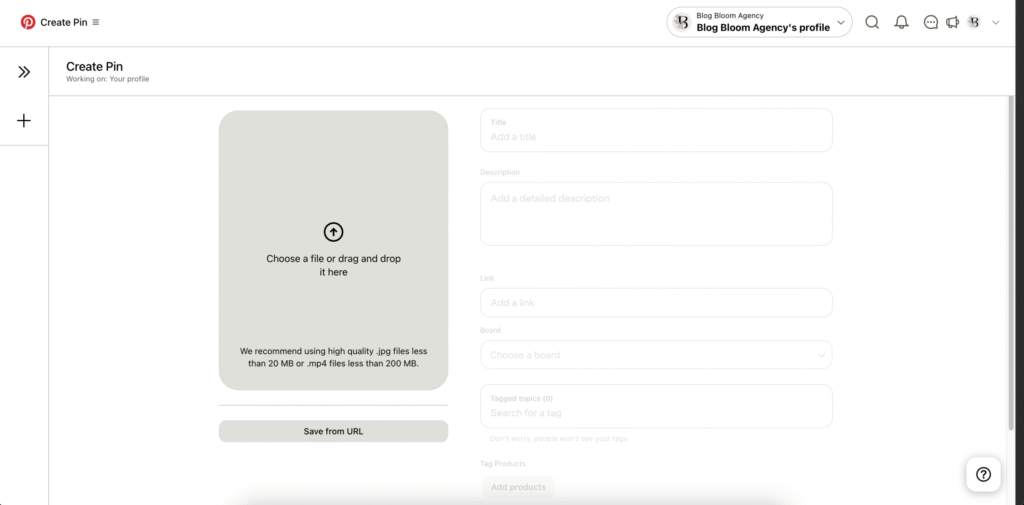
3. Upload an image or video
Pinterest is a visual search engine, so the pin image or video content is critical for capturing attention. Select a high-quality image or video clip from your mobile device or computer: think new photos of a craft project or a short video showcasing a recipe. For best results, use a vertical aspect ratio (e.g., 1000×1500 pixels) to ensure your Pin stands out in people’s search results. You can also use Pinterest camera tools to capture content directly. For business owners, product pins or rich pins (which pull data from your website) are a good idea to showcase items for sale. Ensure the content of your Pin is visually appealing, as high-quality visuals lead to a lot of saves and higher engagement.
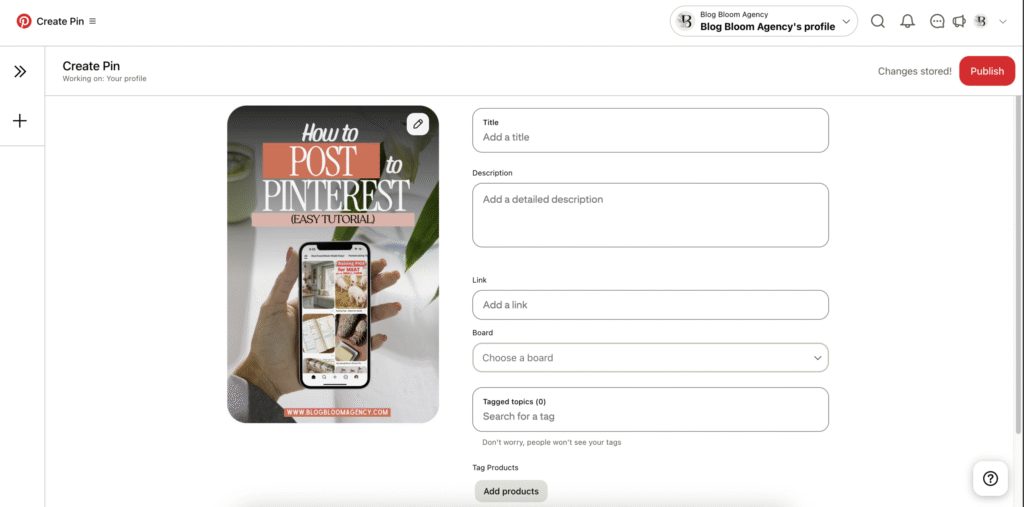
4. Add a title and pin description
A compelling title and pin description are key to making your Pinterest post discoverable.
Description: Write an engaging description (e.g., “Bake homemade bread with this easy recipe! Perfect for cozy evenings. #SlowLiving #Recipes”). Use keywords like “homesteading” or “DIY” to boost SEO capabilities and appear in relevant searches. Add hashtags to reach a wider audience. For accessibility, include alt text to describe the Pin for visually impaired users. This step is crucial for content creators to ensure relevance matters and their Pins rank well.
Title: Keep it concise (under 100 characters) and descriptive (e.g., “Rustic Bread Recipe for Beginners”). Include relevant keywords to align with Pinterest’s recommendation system.
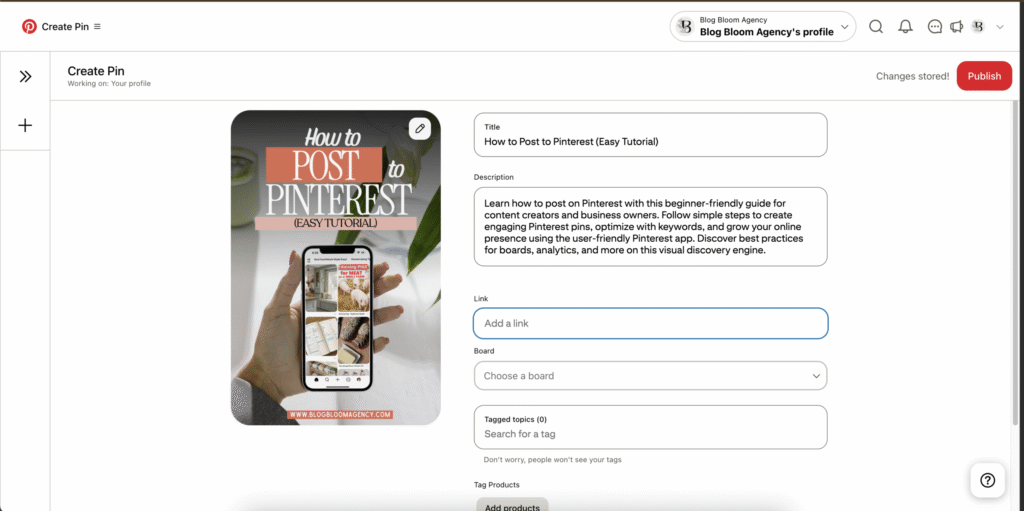
5. Add a destination link (optional)
To drive traffic to your blog, YouTube channel, or online store, add a website link in the “Destination Link” field. For example, link a recipe Pin to a blog post with the full tutorial. This is a great way to connect your Pinterest profile to other social media platforms or your website, enhancing your online presence. Business owners can use rich pins to automatically sync product details, making it a powerful tool for e-commerce. A clear indication of where the link leads (e.g., “Full recipe here!”) encourages clicks and builds trust with Pinterest users.
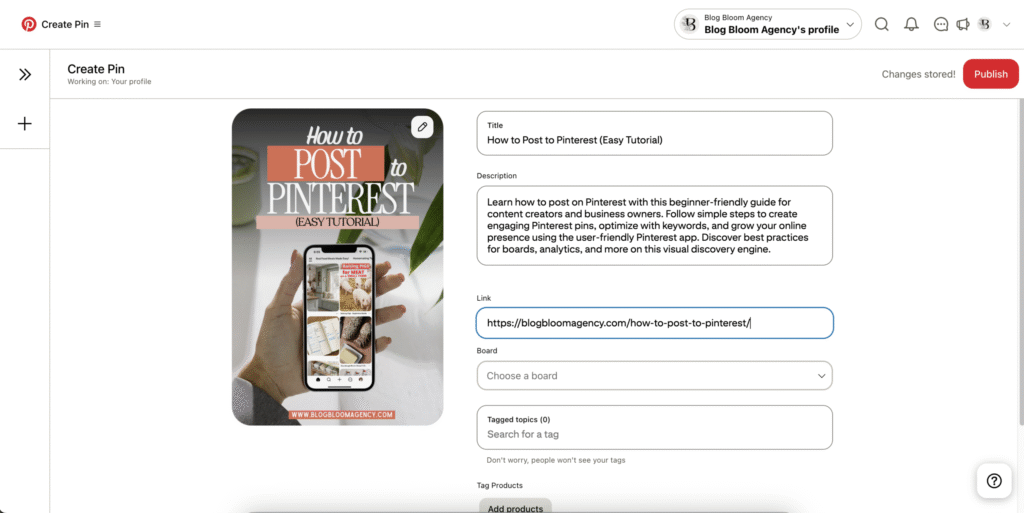
6. Choose or create a Pinterest board
Pinterest boards organize your Pins into categories, like digital pinboards for related topics. Select an existing board (e.g., “Homestead Recipes”) or create a new one:
- Click “Create Board” from the drop-down menu, name it (e.g., “Cozy Living Ideas”), and choose whether it’s public or a secret board (visible only to you).
- Save your new Pin to relevant boards to help Pinterest followers find similar ideas. For example, a business owner might create boards like “Shop Our Products” for product pins or “Inspiration” for idea pins. Boards are a good rule of thumb for keeping content organized and appealing to a broader audience.
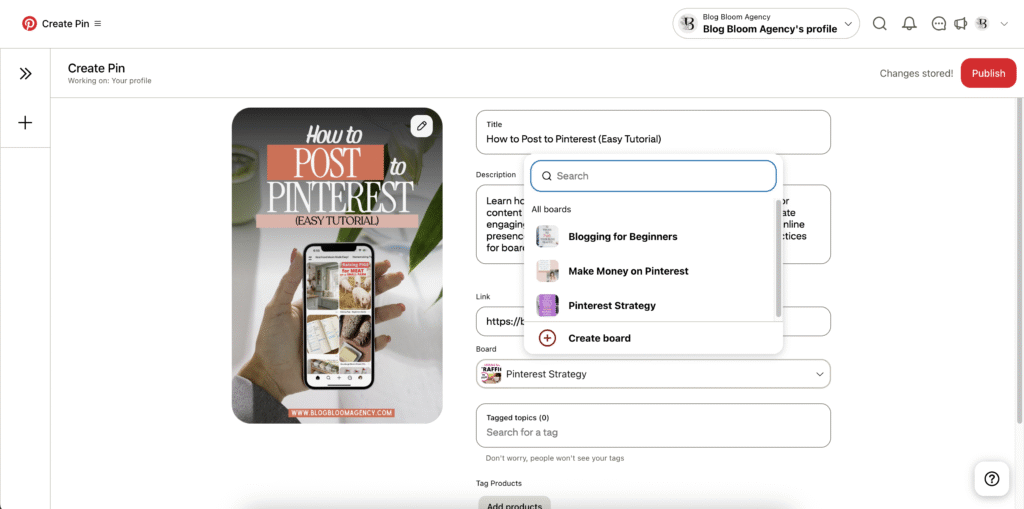
7. Publish your pin
Click the red save button to publish your Pin. It’s now live on your chosen Pinterest board and visible on your Pinterest profile. Depending on Pinterest’s recommendation system, it may appear in people’s search results, home feeds, or related Pins, increasing its reach. For video pins or story pins, ensure the cover image is eye-catching to attract clicks. Publishing regularly (on a weekly basis) is a best practice to maintain an active Pinterest presence and encourage engagement signals like saves and comments.
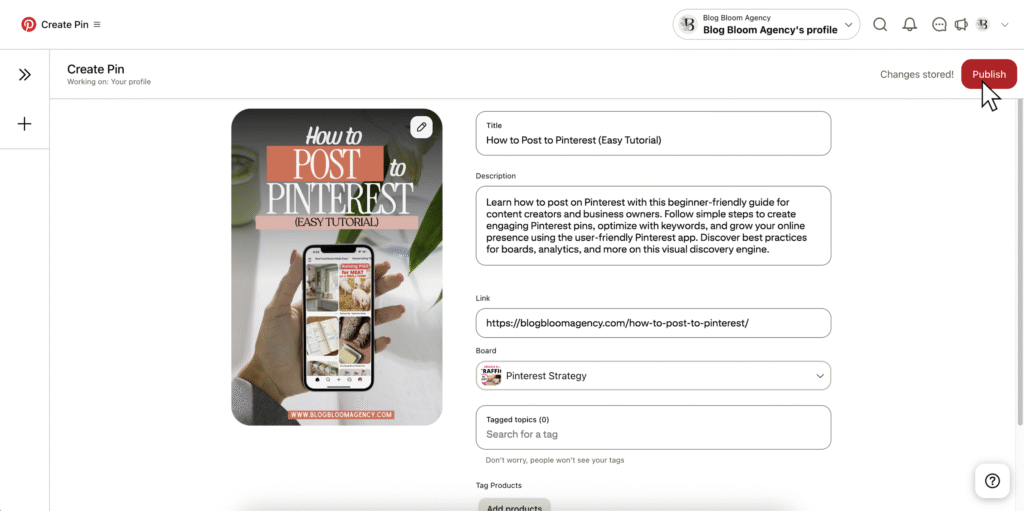
8. Check and share your pin
Visit your Pinterest profile to confirm your Pin displays correctly. Share it across social media accounts (e.g., Instagram, Twitter) to amplify its reach. Engage with Pinterest users by responding to comments or repinning related content to your boards. Use Pinterest analytics (available with a Pinterest business account) to track the strongest metric, such as impressions or clicks, to refine your strategy. Sharing your most inspiring Pins consistently is a great way to build a loyal following and drive traffic to your website URL.

Tips for Beginners
- Start Simple: Focus on high-quality (your own) images or video clips that reflect your brand. Tools like Canva make it easy to design professional Pins without technical expertise.
- Optimize for Search: Use relevant keywords in your title, description, and alt text to ensure your Pins appear in search results, much like optimizing a blog post for search engines.
- Schedule Pins: Use Pinterest’s scheduling feature to post at a later date, aligning with the best time for your audience (e.g., evenings or weekends, based on Pinterest analytics). A good Pin schedule is 1–5 Pins daily.
- Experiment with Formats: Try idea pins (short, engaging video content), carousel pins (multiple images in one Pin), or story pins to showcase different kinds of ideas.
- Engage Actively: Respond to comments and repin content to relevant boards to build community and increase saves.
- Leverage Pinterest Analytics: Track engagement signals to identify your most inspiring Pins and refine your content strategy.
- Stay Secure: Use a strong password and enable two-factor authentication to protect your Pinterest account, ensuring a secure platform.

Advanced Strategies for Success
To maximize your Pinterest post’s impact, consider these best practices on how to post to Pinterest:
- Pin Consistently: Posting regularly (e.g., 3–5 Pins daily) keeps your content fresh and boosts visibility. Use Pinterest’s schedule pins feature to plan posts for a later date.
- Use Rich Pins: For business owners, rich pins sync data from your website, making product pins or article Pins more informative and clickable.
- Create Engaging Content: Idea pins and video pins are particularly effective for storytelling, like sharing step-by-step tutorials or real-life moments from your work.
- Optimize Board Names: Name boards with descriptive, keyword-rich titles (e.g., “Sustainable Living Tips”) to attract Pinterest followers searching for related topics.
- Monitor Trends: Use the search bar to explore trending topics and align your Pins with what’s popular to reach a broader audience.
- Test Timing: Experiment with posting times using Pinterest analytics to find the best schedule for engagement (e.g., evenings or weekends).
FAQs
Pinterest on autopilot?
Drive TARGETED traffic to your blog with our expert management and tailored growth strategies.
Get a FREE Pinterest audit below.
A word from us:
Hi, We’re Blog Bloom!
Do you feel that your blogging dreams are about creating a life with purpose, freedom, and fulfillment, yet in reality, some days it feels like drowning elegantly is the best you’ve got?
There are only so many hours in a day!
We know the feeling.
We’re here to help you remember how it feels not just to thrive financially, but to do it in a way that aligns with the life you want to live and the impact you want to make.
That’s our mission
We will personalize a strategy just for you, so you can get what you want out of blogging, and let us take care of everything else
We know every blog is unique, with its own distinct needs. There’s no one-size-fits-all path to success—your goals can be achieved in countless ways, and we’re here to tailor the perfect strategy for you.
- One-on-One Support: From eBook creation to social media management or running your Facebook community, we provide personalized help for all your unique needs.
- Branding That Fits You: If you have existing branding, we use it seamlessly to maintain your unique identity, or craft a tailored branding package if you need one.
- Pinterest-Powered Traffic: Our expert Pinterest management drives targeted visitors to your blog. Choose the package that best fits your blogging needs to skyrocket engagement.
- SEO Blog Writing: We create SEO-optimized blog posts and update existing content to boost search rankings and keep your audience engaged.